Skip to content

Point of sale · Stock · M-Pesa · KRA eTIMS

POS and stock control for Kenyan shops

Sell at the counter, keep count of your stock and see what you made today, in your web browser, on the phone or computer you already have.

  • 14 days free, no card
  • Nothing to install
  • Kenyan VAT set up for you
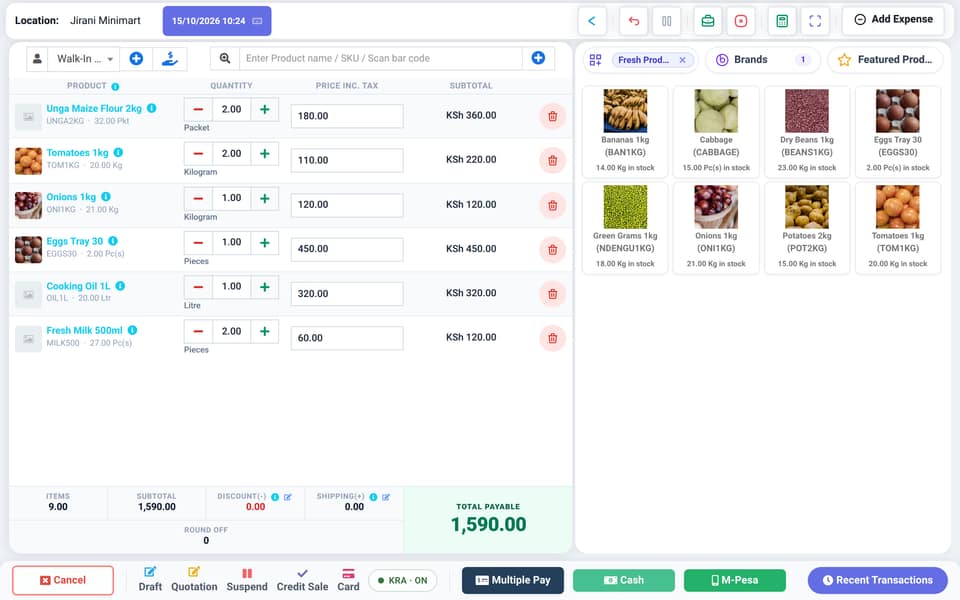
Screenshot of the till in a web browser: six items in the basket, a total of KSh 1,590.00, and Cash and M-Pesa buttons to take payment.
Screenshot of the till on an Android phone: four items in the basket and a total payable of KSh 1,170.00.

Run your shop

Everything you need to run your shop

The till, the store room and the books in one system, for one shop or several.

These are screens from the real system, showing a sample shop.

  • Screenshot of the stock report: the value of the stock in hand, and items under their reorder level highlighted in pink.

    Stock and inventory

    Stock goes down with every sale and up with every delivery, so you always know what is on the shelf and what it is worth.

    • Items running low show on your dashboard
    • Write off damaged, expired or missing stock
    • Stock kept for each branch, and moved between them
  • Screenshot of the payment window at the till: KSh 665.00 paid by M-Pesa, with the M-Pesa transaction code typed in.

    Sales and receipts

    Scan a barcode or tap a product, then take cash, M-Pesa, card or a mix of them. The receipt shows each item's VAT class and a VAT summary.

    • Hold a sale and come back to it
    • Returns and refunds
    • Sell on credit to customers you trust
  • Screenshot of the purchases list: deliveries from three suppliers, each marked paid, part paid or due.

    Purchases and suppliers

    Record each delivery and what it cost, and stock goes up by itself. See what you still owe, supplier by supplier.

    • Purchase orders
    • Returns to a supplier
    • Part payments, with what is still due
  • Screenshot of the dashboard for one month: total sales, purchases, money owed and expenses, with a chart of sales for the last 30 days.

    Reports

    Sales, profit, expenses and what you are owed, for today, this month or any dates you pick.

    • Profit and loss, and best sellers
    • Stock value and tax
    • Sales by cashier, and by day
  • Screenshot of a shift's close-out: sales of KSh 2,494.00 split into cash, card and M-Pesa.

    Staff and shifts

    Everyone gets their own login, and their role decides what they can see and do. Each shift opens with a float and closes with a count.

    • Cash, M-Pesa and card counted on separate lines
    • See what each cashier sold
    • Keep staff to their own branch
  • Screenshot of a customer's statement: total invoiced, total paid, the balance due of KSh 19,820.00, and each sale and payment.

    Customers and credit

    Give credit with a limit for each customer, see exactly who owes you what, and print or email them a statement.

    • A running balance for every customer
    • Payments recorded against what is owed
    • Customer details and KRA PIN on file

M-Pesa and KRA eTIMS

M-Pesa on the right sale, and VAT right on every receipt

The two things every Kenyan shop deals with all day, handled by the till instead of a notebook.

Screenshot of the till waiting for an M-Pesa payment: KES 590.00, the shop's Paybill number, and "Watching for payment".

Every M-Pesa payment, on the right sale

  • Type the code, on every plan. Pick M-Pesa at the till and type the code from the customer's message. It stays on the sale and prints on the receipt, so any payment can be traced later.
  • Or let the till match it, on Standard and Pro. The till shows your Paybill or Till number, watches for the payment and marks the sale paid when Safaricom confirms it. A forwarded or fake SMS cannot do it.
  • Its own line at closing time. M-Pesa is counted apart from cash, so the drawer and your M-Pesa statement can each be checked.

Automatic M-Pesa needs your own Paybill or Till and API keys from Safaricom (Daraja). Their approval takes a few days. Pochi la Biashara can only be recorded by typing the code.

Screenshot of a printed receipt: four items each marked with its VAT class, a VAT summary by rate, and the M-Pesa transaction code.

KRA eTIMS: your VAT, worked out on every sale

  • Kenyan VAT rates set up from day one: 16%, 8%, zero-rated, exempt and non-VAT, on every plan.
  • Each product carries its own tax class, so a basket that mixes them adds up, and every receipt prints a VAT summary.
  • A discount on the whole bill is shared across the items, so the VAT figure stays right.
  • On Pro, a list of every sale you still need to declare. Once you have entered one in eTIMS Online, record KRA's invoice number and it leaves the list.

Not live yet Sending invoices to KRA straight from the till. Until it is, declare through eTIMS Online or your ETR, as you do today.

Your kind of shop

For shops, restaurants and bars, from the duka to the supermarket

One system, with the settings each business needs ready to switch on.

  • A café counter with an espresso machine, coffee grinders and stacked cups, illustrating restaurants and coffee shops in Kenya.

    Restaurants and coffee shops

    A restaurant and café POS that takes orders by table and waiter, sends them to a kitchen screen and lets waiters mark each one served.

  • A smiling shopper with an orange basket in a small supermarket aisle full of biscuits and crisps, illustrating supermarkets and minimarts in Kenya.

    Supermarkets and minimarts

    A supermarket POS that scans barcodes and weighing-scale labels, runs several tills at once and closes each shift with a cash count.

  • A smiling worker in a reflective vest in a warehouse stacked with sacks of flour and boxes, illustrating wholesalers and distributors in Kenya.

    Wholesalers and distributors

    Wholesale and distribution software with a trade price list, sales by the carton or the piece, credit limits and customer statements.

  • Shelves of enamel jugs, kettles, basins and buckets, illustrating hardware shops in Kenya.

    Hardware shops

    A hardware shop POS that sells by the piece or the box, cuts lengths by the metre, quotes big jobs and gives trusted fundis credit.

  • A man showing a woman a box of medicine at a bright pharmacy counter, illustrating chemists and pharmacies in Kenya.

    Chemists and pharmacies

    Pharmacy software for chemists that records the batch number and expiry date on every delivery and shows what expires soon.

  • Two empty barber chairs in front of mirrors and a counter of hair products, illustrating salons and barbershops in Kenya.

    Salons and barbers

    A salon and barbershop POS that sells services with no stock next to the products you retail, and works out each stylist's commission.

  • A smiling woman on the phone, holding a tablet, in a liquor store lined with bottles, illustrating bars and liquor stores in Kenya.

    Bars and liquor stores

    A POS for bars and wines & spirits shops that sells by the bottle or the crate, keeps tabs open until paid and closes each shift with a cash count.

  • Computer monitors and desktop towers on a shop's shelves, illustrating electronics and phone shops in Kenya.

    Electronics and phone shops

    A phone and electronics shop POS that records the IMEI or serial number and the warranty with every item you sell.

Getting started

Get started in three steps

  1. Screenshot of the sign-up form, asking for the shop's name, county, town and KRA PIN.

    Create your account

    Your shop's name, where it is, and a login. No card, and nothing to install.

  2. Screenshot of the add product form: name, SKU, unit, category and the stock level that counts as low.

    Add your products

    Type them in one by one, or bring your list from an Excel sheet with the stock you have now.

  3. Screenshot of the till's product buttons: bananas, cabbage, beans, eggs, green grams, onions, potatoes and tomatoes, each with its stock.

    Open the till and sell

    Tap a product or scan its barcode, take the money and print the receipt. Add your M-Pesa and KRA details whenever you are ready.

Questions

Questions before you start

What is KRA eTIMS, and do I need it?

eTIMS is KRA's system for electronic tax invoices. Every business in Kenya now has to issue eTIMS invoices, whatever its size; being under the VAT threshold changes the kind of invoice, not whether you need one. It matters to your customers too: a business that buys from you cannot claim the cost against its tax without a valid eTIMS invoice. This system keeps your VAT right on every sale and, on Pro, lists the sales you still need to declare.

Does it send my invoices to KRA?

Not yet. It is not an ETR, and sending invoices to KRA straight from the till is not switched on for anyone. Until it is, declare your sales through KRA's eTIMS Online or your ETR, as you do today. We will say so on this page when it is live, and not before.

Does it work with my Till number or Paybill?

Yes. On every plan you record M-Pesa at the till by typing the code from the customer's message, whether they paid your Till, your Paybill or your Pochi la Biashara. Automatic M-Pesa, on Standard and Pro, needs your own Till or Paybill and API keys from Safaricom (called Daraja); Safaricom's approval takes a few days of their paperwork. It has been tested with a Paybill. If you use a Till, we will test it with you before you rely on it. Pochi la Biashara cannot be made automatic by anyone: Safaricom offers no way to do it.

What if the internet goes down?

The till needs a connection to record a sale. Mobile data is enough, and a phone hotspot makes a good backup. If the connection drops, write the sales down and enter them when you are back online; you can set the date and time on each one. Nothing is kept on the computer itself, so a broken or stolen laptop does not take your records with it.

Can I use it on my phone?

Yes. It opens in the web browser on any smartphone, with nothing to download. You can ring up a sale, check today's takings and look up your stock from a phone. At a busy counter a tablet or computer is easier, because you see the whole sale at once, and the automatic M-Pesa button only shows on the larger screen. On a phone you record M-Pesa by typing the code.

Do I need to install anything, or buy a machine?

No. It runs in your web browser, such as Google Chrome, on a laptop, desktop, tablet or phone you already have. A barcode scanner and a receipt printer are useful but not needed; they plug into the computer.

What does it cost?

Basic is KSh 1,499 per month, Standard is KSh 2,499 per month and Pro is KSh 3,999 per month. Every new account starts with 14 days of everything, with no card. Compare the plans.

What happens when the free days end?

Your shop moves to the Free plan by itself. The till keeps working and nothing is deleted. Choose Standard or Pro whenever you want automatic M-Pesa, and Pro for the KRA list of sales to declare.

Can I bring my products from Excel?

Yes. Products with their opening stock, and your customers and suppliers, can be imported from an Excel or CSV file. You can also type them in one at a time.

Can I use it for more than one shop?

Yes. Each branch keeps its own stock, you can move stock from one branch to another, and staff can be kept to their own branch. Basic covers one shop, Standard covers up to 2 shops and Pro covers up to 5 shops.

Who can see my sales and my M-Pesa details?

Only the people you give a login to, and only what their role allows. Each shop's records are kept apart from every other shop's, and your M-Pesa API keys are stored encrypted.

Try it with your own products

14 days of everything, no card. If it is not for you, just stop. There is nothing to cancel.